
Does live wallpaper drain battery on a MacBook?
A video wallpaper works on every frame it plays. Mine draws one picture of the sky a minute. Measured CPU and memory, and how to check any app yourself.
A video wallpaper does cost a MacBook some battery. It decodes something like 30 new frames every second for as long as it plays, which is why Wallper, Wallspace and 4K Live Wallpaper pause on their own when you unplug. Apple's own dynamic wallpapers only swap between a set of still pictures through the day. My app, Orbit, draws one still picture of the sky a minute, and on my Mac mini it averaged 0.04% of one CPU core and 22 MB of memory.
I measured it on an M6 Mac mini at 1080p, a computer with no battery at all. So these are CPU and memory numbers, not battery hours, and I haven't measured the GPU yet. The steps to check any wallpaper on your own MacBook are further down.
How much battery does a live wallpaper use?
I couldn't find a published battery test for any Mac wallpaper. The nearest thing is Wallper's own estimate that a 4K video wallpaper adds roughly 1 to 3 percent to a Mac's background power draw, compared with a plain colour, given in its FAQ as an estimate. Its published test, which I come to below, measured CPU and memory rather than battery.
On a Mac, "live wallpaper" covers several different things (how to get a live wallpaper on a Mac compares them), and their costs are miles apart.
Video wallpapers loop a video behind your icons. Most of that work skips the main CPU cores, because Apple silicon has a video decode engine built for this one job. The CPU column stays small for a well-made one, while the decoder and the window server (the part of macOS that puts every window on screen) work on every frame.
To be fair, video is one of the cheaper things a Mac does: Apple rates the MacBook Neo at up to 16 hours of video streaming against 11 for wireless web. Still, Wallper, Wallspace and 4K Live Wallpaper pause on battery, and Backdrop pauses behind full-screen apps.
Apple's built-in Dynamic wallpapers brighten and darken with your time of day. Mojave's desert was one image file of 16 stills (as NSHipster found), swapped as the Sun moves, with nothing playing in between. I haven't seen anyone measure one, but there's almost nothing there to cost.
Plash makes any website your wallpaper, and it costs whatever the page costs: a photo is cheap, a page full of scripts and animation isn't. It can switch itself off on battery.
Orbit is another kind, a still picture that updates. Once a minute it works out the real sky over your city and paints one ordinary picture, then does nothing until the next minute. With the desktop in view all day, that's 1,440 pictures against 2,592,000 frames for a video at 30 frames a second.
Does live wallpaper affect performance on a Mac?
On the CPU, barely, if the app is well made. The one maker's test I found with its method written down had a 4K video wallpaper at 1.46% of one core, and Orbit averaged 0.04% on my Mac mini.
That test is Wallper's: an M4 Mac mini, an ultrawide display and a 4K loop, sampled every 2 seconds for 90 seconds. Its busiest sample hit 4.40% of one core, and the app held about 55 MB. There are no battery figures, because a Mac mini has no battery, and Wallper says so plainly: "no battery percentages were invented for this article". Credit to them. Mine has none for the same reason.
Orbit's 0.04% came from five idle minutes with the desktop in view (0.60% in its busiest 5 seconds), in an optimised build like the one that ships, on macOS 27.0, with another busy app running beside it. That's two Macs and two different tests, so read it as a rough comparison. The gap comes from how often each one has work to do: a video every frame, Orbit once a minute.
Check the units before you compare anyone's numbers, though. Activity Monitor counts each CPU core up to 100%, so a 10-core Mac can show 1,000% (Howard Oakley explains). Backdrop advertises under 0.3% CPU, which its footnote says was 3% of one core spread across a 10-core M1 Max. Wallper's figures and mine are per core.
Energy Impact, Oakley notes, counts the CPU cores' power and not the GPU's, so a busy decoder or graphics chip barely shows there.
Here is everything I measured, with the conditions for each number.
| What | Result | Conditions |
|---|---|---|
| CPU, idle, desktop in view | 0.04% of one core (0.60% in the busiest 5 s sample) | optimised (Release) build, 5 min, 5 October |
| CPU, idle, desktop in view | 0.03% and 0.05% | Debug builds, 5 min each, 1 October |
| CPU, idle, while I used the Mac | 0.11% | Debug build, 5 min, 5 October |
| CPU, desktop hidden (paused) | 0.00% | 150 s |
| CPU while the ISS crosses | 0.0% except the minute's redraw | 617 s pass, clock set by hand, screen locked with drawing forced on, Debug build |
| Energy impact, as the top command reports it | 0.04 | the same Release run |
| Memory, idle | 22 MB (31 MB peak at launch) | desktop in view |
| Memory, briefing card open | 33 MB | highest ever seen with the card: 38 MB |
| Memory, paused | 19 MB | desktop hidden |
| Redraws | 1 a minute; 7 to 8 ms at full priority, 15 to 46 ms at the low priority Orbit really uses | 1080p; the low-priority times are from Debug builds and depend on load |
| GPU | not yet measured | no figure on any Mac |
How I kept Orbit's CPU and memory down
When I picked this idea on 27 September I had one condition: it must never slow my Mac down, because I work on my other projects on the same machine. So the budget came before the sky: under 1% CPU when idle, under 60 MB, animation only for real events (in 1.0, only the station's pass), and a full stop when the desktop is hidden or the battery is low.
On memory, a standard menu bar popover and a SwiftUI Canvas each added about 40 MB or more every time the card opened, until I swapped them out. I tell that story in how my first Mac app got through App Review.
One picture a minute
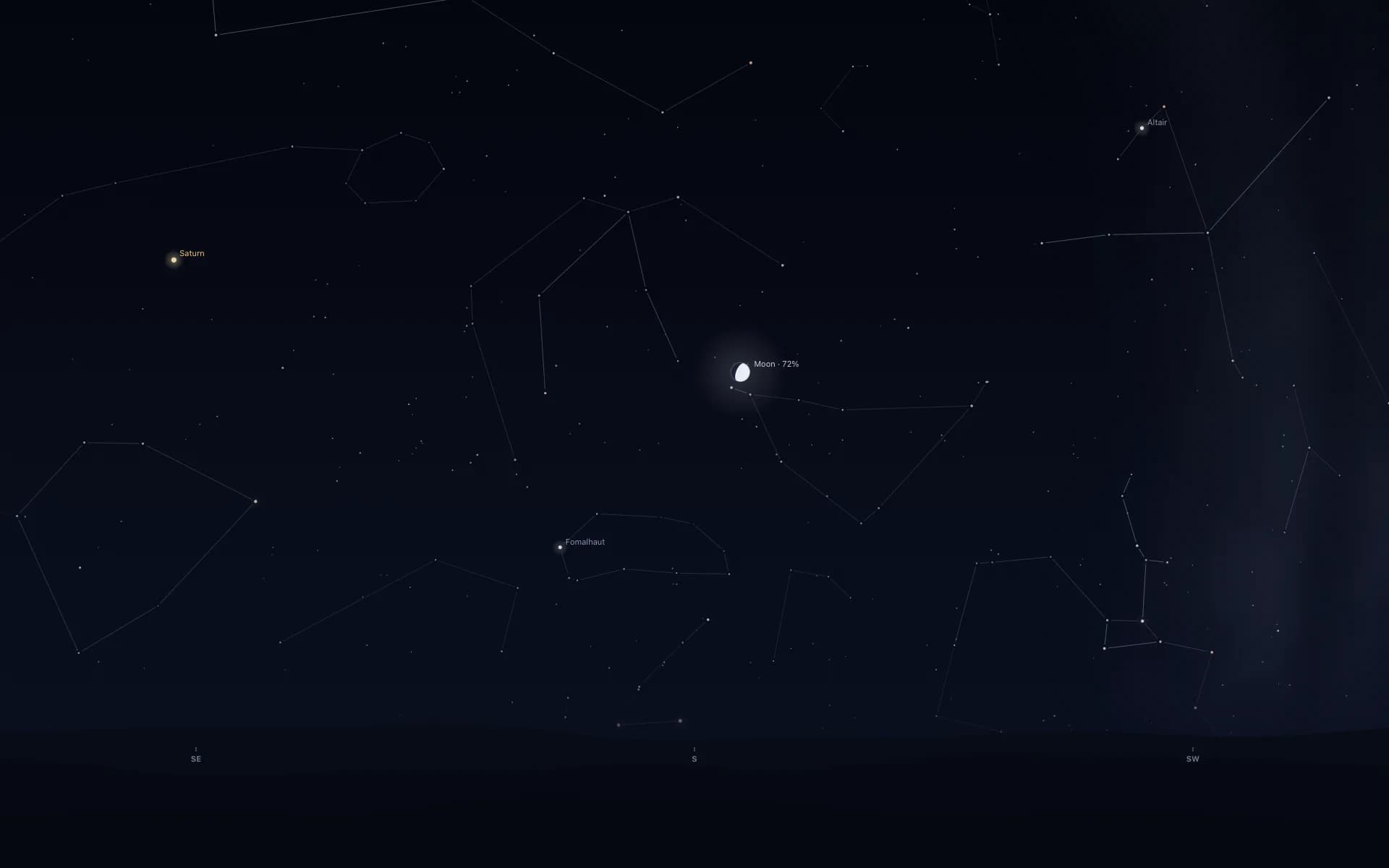
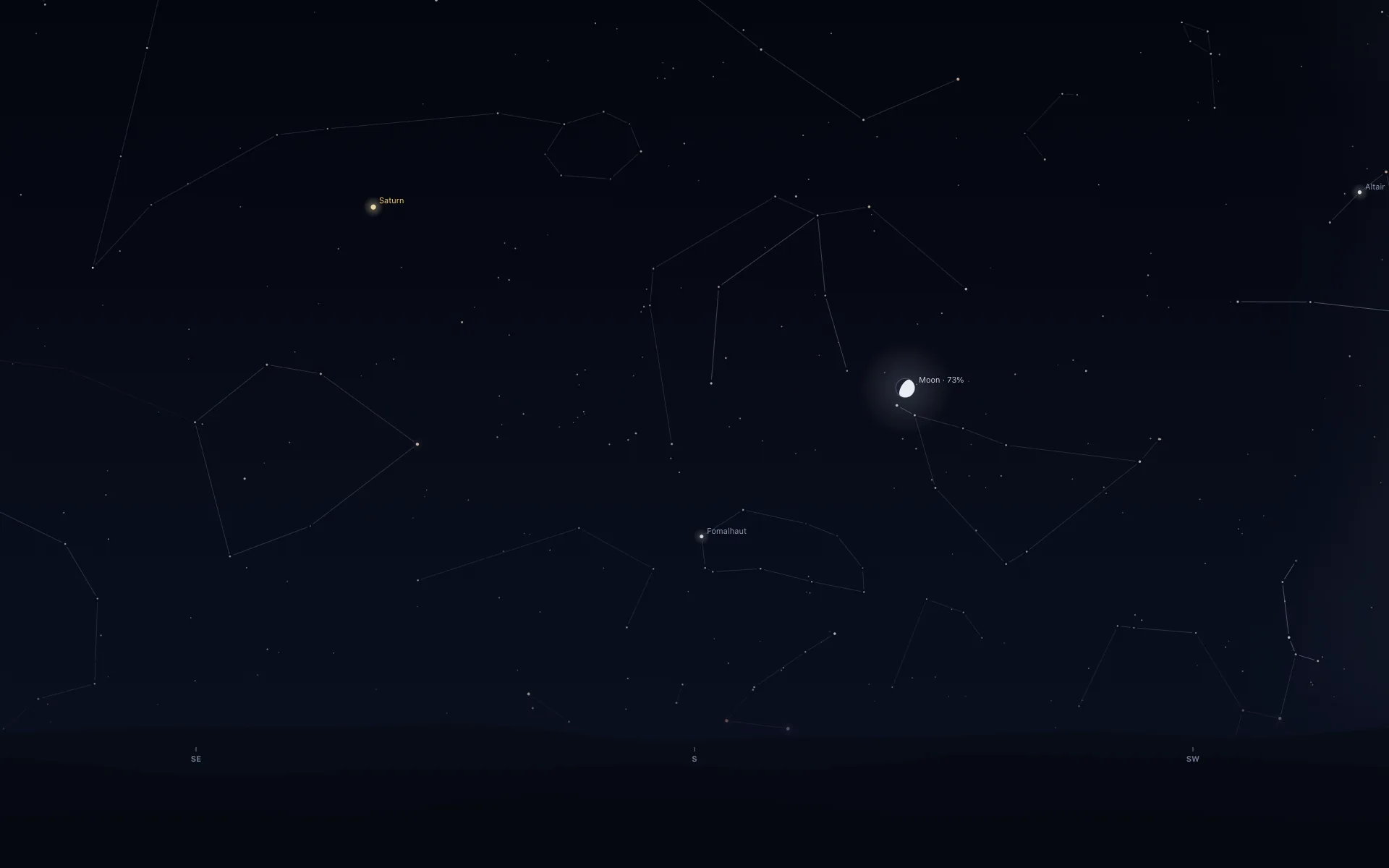
The sky turns a quarter of a degree a minute, about 4 pixels on a 1080p screen. Drawing more often would buy nothing you'd see. Orbit's only timer fires a second after each whole minute, with ten seconds of slack so macOS can bundle the wake-up with others.
Drawing one 1080p picture takes 7 to 8 thousandths of a second at full priority in the optimised build. Orbit asks macOS for low priority, though, and waits behind whatever you're doing. In my test builds that stretched a redraw to between 15 and 46 thousandths, depending on how busy the Mac was. Then Orbit sleeps for the rest of the minute.
Nothing drawn when nobody can see it
Each desktop window can tell when it's hidden: behind a full-screen app, the lock screen, the screen saver or a sleeping display. Then Orbit's own work stops, with no timer and nothing fetched, until the desktop comes back and it draws once. Paused, it measured 0.00% CPU over 150 seconds and 19 MB of memory.
The lock screen is the only one I've tested; the others use the same signal.
That pause once kept a real pass off my desktop. On 1 October, with the app's clock set forward to the evening, that night's Los Angeles pass (due at 7:24 PM) was played behind my lock screen at a quarter to three in the afternoon, Los Angeles time. When the real pass came round, the desktop was out of sight, so Orbit had paused, as designed, and the pass never appeared.
Unplugged and under 20% charge, Orbit stops drawing altogether. Above 20% it keeps drawing on battery, unlike the video apps that stop when you unplug. The 20% isn't a setting, and I've never seen this pause happen, because my Mac mini has no battery.
The station moves without waking the app
During a visible pass the space station crosses the desktop as a small layer above the still picture. Orbit hands macOS the station's whole path once, and the window server moves it without waking Orbit at all. The sky redraws as usual once a minute, plus once as the pass begins, to turn and face it, and once as it ends, to turn back.
Over a 617-second pass (a test pass, with the clock set by hand) Orbit read 0.0% CPU in every sample but the minute's redraw. It asks for at most 30 frames a second. The real rate is the window server's business.
This clip is a demonstration drawn by Orbit's renderer over New York, not today's live pass and not a camera feed.
How to check any wallpaper app in Activity Monitor
You don't have to take my word, or any maker's. These steps follow Apple's own guides, plus Howard Oakley's notes on what the numbers mean.
- It's in Applications, then Utilities. Find the wallpaper app by name.
- On the CPU tab, watch it for a minute with the wallpaper showing, then quit the app and compare. 100% is one core.
- Energy Impact is a relative measure of the energy an app uses now, and lower is better. MacBooks add 12 hr Power, the average over the last 12 hours. Neither counts the GPU, so also open GPU History from the Window menu.
- The Memory tab shows what the app holds. The Memory Pressure graph shows whether your Mac is short.
- On a MacBook it lists apps using significant energy. If your wallpaper is on that list while you're only working, that's your answer.
- Switch it on in System Settings under Battery, Energy Mode (Apple's steps), and see whether the wallpaper slows down. Orbit 1.0 doesn't check Low Power Mode at all; its only battery rule is the stop below 20%.
- Pick two similar hours of work and start both at the same charge and screen brightness. Run one with the wallpaper and one without, then compare the last 24 hours in Battery settings. My Mac mini has no battery, so this one is yours.
Tap a box as you go. Checks reset when you leave this page.
Live wallpaper on a MacBook Air or MacBook Neo
The MacBook Neo, Apple's laptop from March 2026 ($599 at launch, $699 since June), has 8 GB of memory and a 36.5 watt-hour battery, about two thirds of the 53.8 in the 13-inch MacBook Air. On a machine that size every app's memory counts. Wallper's app held about 55 MB in its test, and Orbit held 22 MB on my Mac mini, about a quarter of one percent of the Neo's 8 GB.
Orbit needs macOS 15 or later. The Neo launched with macOS Tahoe, which is newer, and any MacBook Air running macOS 15 or later will do too. I haven't run Orbit on either.
How to stop a live wallpaper draining your battery
Turn on the app's pause-on-battery switch if it has one (several video apps come with it on), and quit the wallpaper when you're on battery and don't need it. Going by how they work, a plain still or one of Apple's dynamic wallpapers has the least to do, and a video wallpaper with pause-on-battery left on is a fair deal.
If you'd rather have the sky that's overhead right now, I made Orbit: Live Sky Desktop for that. It draws the real sky over your city once a minute, space station passes included, and stops drawing when nobody can see the desktop. It's $6.99 once (₹699 in India), with no subscription or in-app purchases, for macOS 15 or later on Apple silicon and Intel. Screenshots are on the Mac page, and I wrote about living with it too.
Common questions
Does live wallpaper drain battery in the background?
Only while it's drawing, and many apps stop drawing when you can't see them or when you unplug. Backdrop, Wallper, Wallspace and 4K Live Wallpaper say they pause behind full-screen apps, on battery, or both. Orbit is built to stop whenever its desktop is hidden (I've tested it behind the lock screen), and paused it measured 0.00% CPU and 19 MB of memory on my Mac mini.
Does live wallpaper use RAM?
Some. Wallper measured about 55 MB playing a 4K loop in its own test. I measured Orbit at 22 MB idle and 33 MB with its briefing card open. On an 8 GB MacBook Neo, 22 MB is about a quarter of one percent of the memory.
Does live wallpaper use the GPU?
A video one does, for every frame it shows: the Mac's video decoder works on it and macOS has to put it on screen. Activity Monitor's Energy Impact leaves GPU power out, so check GPU History in the Window menu too. Orbit paints one picture a minute on the CPU, and I haven't measured its GPU use yet.
Does dynamic wallpaper drain battery on a MacBook?
Very little, going by how it works. Apple's dynamic wallpaper is a set of still pictures (the Mojave desert had 16) that change with the time of day where you are, and nothing plays between the changes.
Is live wallpaper safe for a laptop?
For the hardware, yes: the price of a heavy wallpaper is battery and a warmer Mac. The real safety question is where the app comes from. Every Mac App Store app runs inside Apple's App Sandbox, and Orbit is sandboxed with network and location permissions only. Its privacy label reads Data Not Collected.
How do I stop a live wallpaper from draining my battery?
Turn on the app's pause-on-battery option (several video apps have it on by default), quit it when you don't need it, or use a still or dynamic wallpaper. In Orbit, switching off Sky on the Desktop in the Moon's menu leaves only the Moon's menu bar item, and quitting puts your old wallpaper straight back. It also stops by itself when a MacBook is running on battery below 20%.
More guides
- How to get a live wallpaper on a Mac: what moves, and what it costsHow to get a live wallpaper on a Mac, free or paid: Apple's aerials, video apps, Plash for GIFs and the real sky over your city, with what each one costs.
- How my first Mac app got through App Review, Guideline 2.1 letter and allApple sent my first Mac app a Guideline 2.1 Information Needed letter. I answered the same day with a screen recording; it was approved five days later.
- A live sky wallpaper for Mac that follows your citySee Orbit's Mac sky wallpaper in action: choose a city, preview an ISS pass, open the menu bar briefing and understand what the desktop does between updates.
- Living with the real night sky as my Mac wallpaperMy Mac's wallpaper is the real night sky over the city I pick, redrawn every minute. What living with it is like, and why Bengaluru sees more sky than LA.
- A quick tour of Orbit on Android, and where to go after itWatch Orbit's real Android demo, then learn where to find the ISS, explore planets in 3D, move through time and check a rocket launch before heading outside.
- Dynamic wallpaper not changing on your Mac? 8 things to check, in orderMac dynamic wallpaper not changing or moving? Set the menu to Dynamic, then check Location Services, your time zone and Appearance, on Tahoe and macOS 27.
- Earliest sunset of the year 2026, and why it comes before the shortest dayEarliest sunset of the year 2026: 4:28 PM on 7 December in New York, 3:51 PM on 12 December in London, and why it falls before the year's shortest day.
- Free night sky wallpapers for Mac: eight 5K skies, from Orion to a supermoonFree night sky wallpapers for Mac and MacBook in 5K, each a real sky on a real date: Orion over New York, a supermoon, the Southern Cross and the ISS.
- Geminids 2026: the best night to watch, and when the Moon sets in 13 citiesThe Geminids peak on 14 December 2026 at 14:00 UT (7:30 PM in India) under a crescent Moon that sets early. The best night and moonset times for 13 cities.
- How do I know if I saw the ISS? Eight signs, and how to look up the passHow to know if you saw the ISS: a steady light, no blinking, a few minutes to cross. How to look up the pass, and rule out planes, Starlink and Tiangong.
- How my Mac live wallpaper idles at 0.04% CPUMy live wallpaper idles at 0.04% CPU on a Mac. How it draws one picture of the sky a minute, stops when you can't see it, and what ate its memory instead.
- How to find Orion and its belt, with times for 13 citiesHow to find Orion: its belt is three stars in a short, straight row, low in the east on November evenings. Times for 13 cities, and why Australia flips it.
- How to find the North Star, and how high Polaris sits over your cityFind the North Star from the Big Dipper or Cassiopeia's W. It stands about as high as your latitude: 52° in London, 41° in New York, 13° in Bengaluru.
- How to get a live wallpaper on a MacBook Neo without eating its 8 GBYes, a MacBook Neo can run a live wallpaper. Which kinds go easy on its 8 GB, the free ones Apple ships, the 2408 by 1506 size, and what my app weighs.
- How to get ISS pass alerts on a Mac, now that NASA's space station emails are goneNASA stopped Spot the Station's email and text alerts on 12 June 2025. Here's how to get ISS pass alerts now, on your phone or right on your Mac's desktop.
- How to put the Moon phase in your Mac menu bar (or a widget)Six apps put the Moon phase in a Mac or MacBook menu bar, from free to $6.99. Also: how to add a Moon widget, what Weather shows, and 2026's full moons.
- How to see the ISS from India: when, which way to face and how high to lookThe ISS shows up over India in short runs at dawn and dusk. How to get the times for your city, which way to face, how high to look and why cities differ.
- Is the ISS coming down? Yes, on purpose, after it retires in 2030Yes, the ISS is coming down, on purpose: NASA plans to retire it in 2030 and sink it in the South Pacific. Why it can't stay up, and how to see it first.
- Leonid meteor shower 2026: the best night and hours to watch, city by cityThe Leonid meteor shower peaks on 17 to 18 November 2026. The half Moon sets near midnight, so the hours before dawn are dark. Best times for 10 cities.
- Mac apps without a subscription: 14 you can buy onceMac apps without a subscription: 14 you can buy once in 2026, from Magnet at $4.99 to BBEdit at $59.99, with update terms where the seller states them.
- Mars and Jupiter conjunction, November 2026: what time to look in your cityMars and Jupiter conjunction: 1.2 degrees apart before dawn, 15 and 16 November 2026. Times for New York, London, Bengaluru and Sydney, and which is which.
- Quadrantid meteor shower 2027: when to look in 16 cities, India includedThe Quadrantids peak on 4 January 2027 at 03:25 UT, for only a few hours, under a thin crescent Moon. When and where to look in 16 cities, India included.
- Supermoons in November and December 2026: the Beaver Moon and the Cold MoonTwo supermoons end 2026: the Beaver Moon on 24 November and the Cold Moon on 23 to 24 December, the year's closest full Moon. Moonrise times for 8 cities.
- The best astronomy apps for Mac in 2026, and which ones are iPad appsThe best astronomy apps for Mac in October 2026: Stellarium, Night Sky, SkySafari, Starry Night 8 and more, with US prices and which ones are iPad apps.
- What is the bright star in the east before sunrise? Late 2026, date by dateThe bright star in the east before sunrise is Jupiter, then Venus from early November 2026. Where to look and how high, for New York, London and Bengaluru.
- Why the ISS is only visible at dawn and duskWe wrote the code that decides when the ISS is visible. The three tests it runs, the geometry of Earth's shadow, and 30 days of real passes over Bengaluru.