
A live sky wallpaper for Mac that follows your city
See Orbit's Mac sky wallpaper in action: choose a city, preview an ISS pass, open the menu bar briefing and understand what the desktop does between updates.
A space wallpaper can be a beautiful picture without telling you anything about the sky outside. Orbit for Mac is built around a more specific idea: the desktop shows the sky for a city you choose, at the time you are using it.
The stars, planets and Moon have positions. Daylight changes into twilight and night. When a predicted visible ISS pass comes along, the station crosses the desktop. You can keep working with the scene behind your windows, then open a short briefing from the menu bar when you want details.
This clip shows the ISS crossing a New York sky, drawn by the app's own renderer. It is a demonstration sequence, not today's live pass and not a camera feed.
Choose the city whose sky you want to see
The location is part of the picture. A sky calculated for another city can look convincing while being the wrong one for you.
Choose a city from Orbit's list, or use Location Services to set the location. Choosing a city is enough if you would rather not grant location access. The Mac app keeps the coordinates on the machine; its sky calculations do not require uploading them to our server.
Then choose which direction the desktop faces: north, east, south or west. You can switch constellation figures and labels on or off. Labels are useful while learning a patch of sky; switching them off leaves a quieter desktop. Neither choice changes where the underlying objects belong.
This is a calculated view over a drawn horizon. It cannot tell you whether a building, a tree or cloud outside your window is blocking an object. Use it to understand what is up and where, then check your actual view.
Watch what changes between day and night
In ordinary use, the sky is a still image that redraws once a minute. The Sun changes its position, twilight colours move with it, and stars become part of the night scene. The Moon follows its phase and orientation. The app can draw constellation figures, the naked-eye planets and the Milky Way.
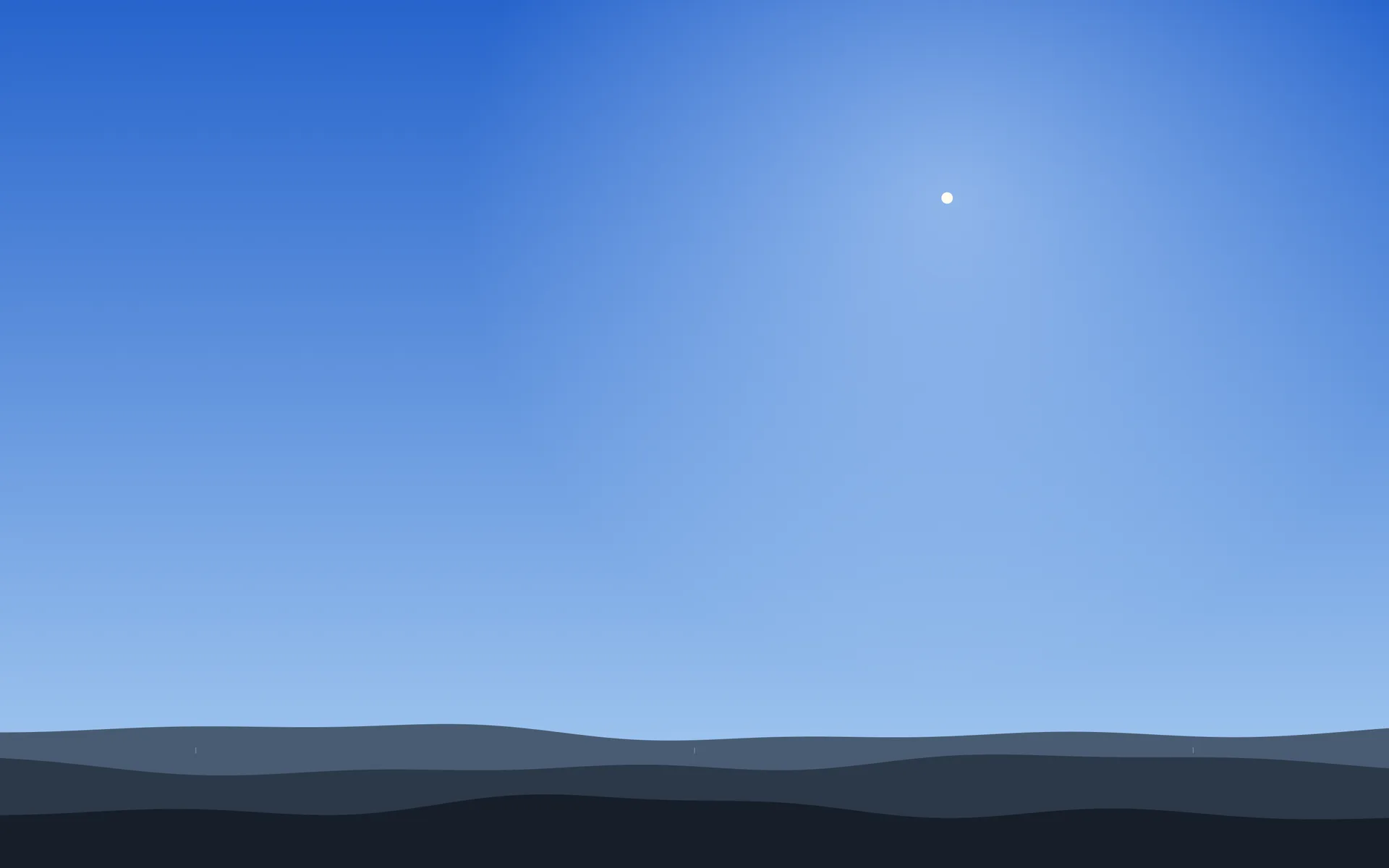
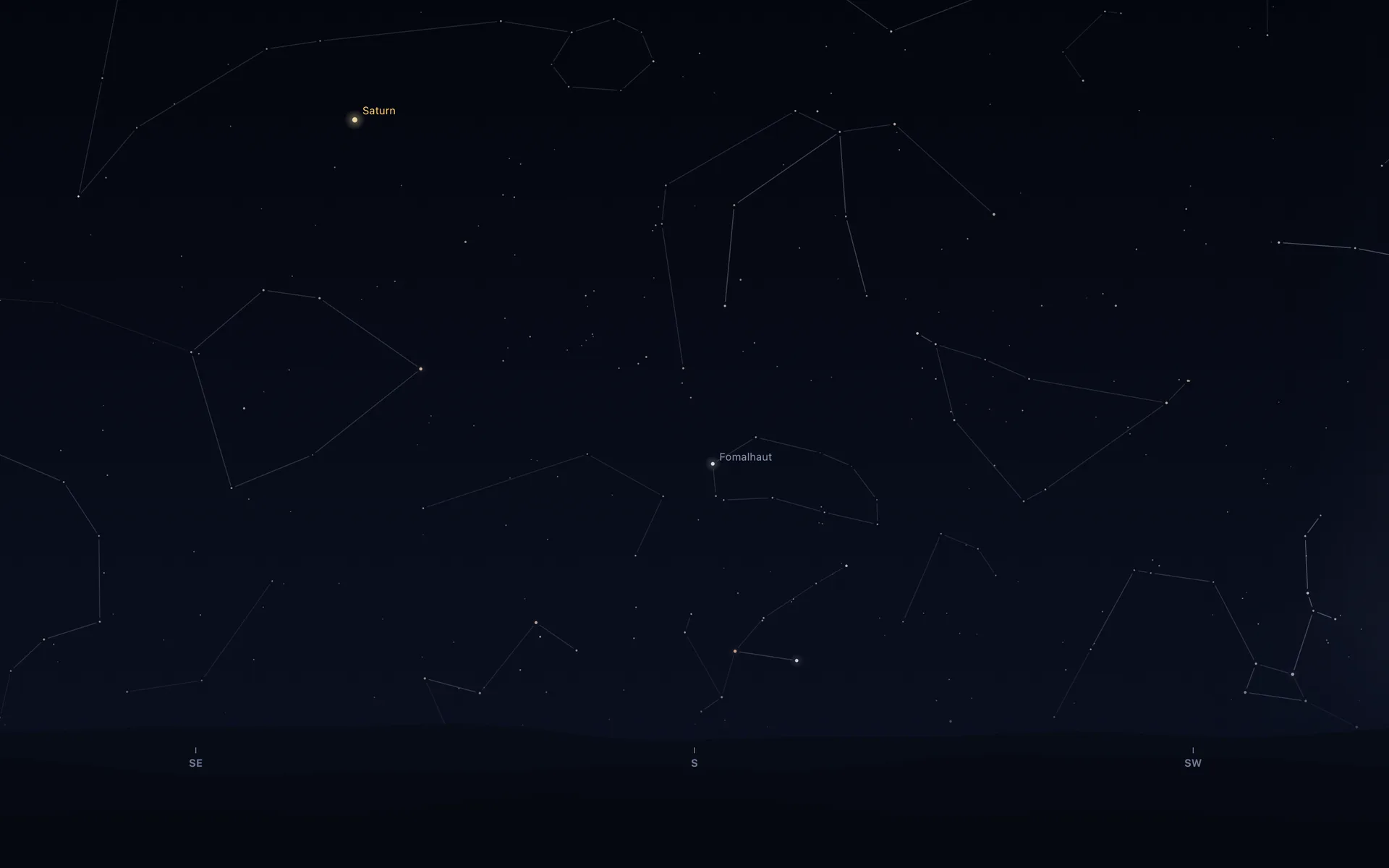
The small movement over a working hour is the point. You do not have to watch an animation continuously to notice that evening is arriving. The visual changes are tied to the calculated scene, rather than a decorative loop starting over every few seconds.
Our Mac product page shows the day, sunset, night and briefing-card screenshots together. Use those to judge whether the level of detail suits the way you keep your desktop.
Preview a pass without waiting for one
Open the briefing card and use its gold preview button to see the next pass cross the desktop in twelve seconds. That is a preview, so the condensed motion should not be read as the real length of the pass.
During an actual predicted visible pass, the station is shown as a bright point with a short trail, and the scene turns to face the pass. The menu bar indicates that the ISS is overhead. Outside that window, you should not expect a station permanently circling the wallpaper.
If the next visible pass is several days away, that alone is not a malfunction. The ISS must pass your location under suitable lighting conditions. Our guide to the station's dawn-and-dusk visibility explains the geometry behind that waiting period.
For an outdoor sighting, recheck the day's prediction and allow for your horizon and weather. A renderer preview demonstrates the interface; it does not establish that a particular pass will be visible from your garden.
Open the Moon in the menu bar for the details
The menu bar icon uses the Moon's current phase. Click it to open the briefing: sunset and darkness, the Moon, useful planets, the next visible ISS pass, the next launch and space weather.
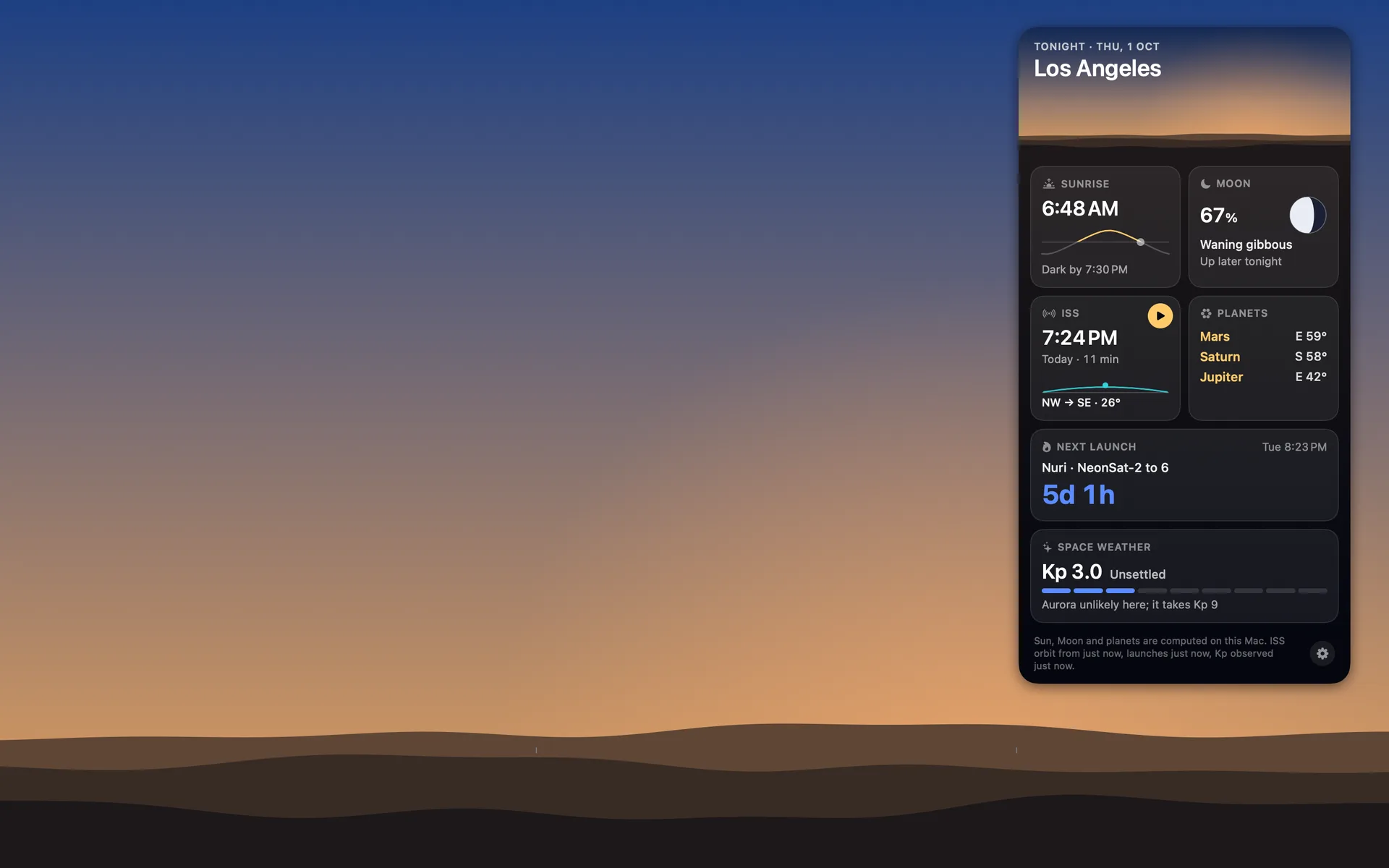
Read the source-age lines as well as the values. Orbit uses public feeds for the station's orbit, launch schedules and the Kp index. A feed can be delayed, and a launch can move. The age of the information helps you decide whether to refresh or check the original source before making a plan.
Notifications are optional. The Mac app has separate switches for the ISS, launches and the aurora outlook. Turn on only the reminders you want. A notification about a possible aurora is an invitation to check conditions, not a guarantee of seeing one.
What about battery and CPU use?
Orbit's normal wallpaper cadence is one redraw a minute. During a pass, a separate small layer carries the station's motion. The app also pauses drawing when the desktop is hidden, such as behind a full-screen app, on the lock screen or while the display sleeps; it has a low-battery pause as well.
Our published measurements on an Apple silicon Mac mini were under 0.1% CPU at idle and roughly 25 MB of memory, rising to about 33 MB with the briefing open. Those are measurements from that machine, not a promise for every Mac or a battery-life benchmark. The useful check on your own setup is ordinary use with the windows and displays you normally have open.
Check the platform before buying
Orbit: Live Sky Desktop supports macOS 15 or later, on both Apple silicon and Intel. The advertised US price is $6.99 once; the Mac App Store shows the current price for your region. It is a separate app and purchase from the free Android version.
The Mac app does not require an account and has no advertising or analytics SDK. This website uses anonymous visit and interaction measurement, separately from the app. For a hands-on pocket interface with the 3D solar system and Time Machine, see the Android video tour. For the sky behind your workday, start with Orbit for Mac.
Common questions
Is Orbit's Mac wallpaper a looping space video?
No. Orbit draws a sky for the selected city and time. The normal sky redraws once a minute. During a visible ISS pass, a separate station layer moves across it. The embedded clip is a demonstration produced by that renderer.
Which Macs can run Orbit?
Orbit for Mac supports macOS 15 or later on Apple silicon and Intel. Check the current Mac App Store listing before buying for a particular machine.
Do I need to give Orbit my precise location?
You can choose a city from the list instead. Location Services is an optional way to set the observing location, and the Mac app keeps those coordinates on the machine.
Why is there no ISS moving across my wallpaper right now?
The station appears for predicted visible passes over your selected city. It does not orbit around the desktop continuously. Open the briefing to check the next pass or use its preview button to see the demonstration.
More guides
- A quick tour of Orbit on Android, and where to go after itWatch Orbit's real Android demo, then learn where to find the ISS, explore planets in 3D, move through time and check a rocket launch before heading outside.
- Why the ISS is only visible at dawn and duskWe wrote the code that decides when the ISS is visible. The three tests it runs, the geometry of Earth's shadow, and 30 days of real passes over Bengaluru.
- Does live wallpaper drain battery on a MacBook?A video wallpaper works on every frame it plays. Mine draws one picture of the sky a minute. Measured CPU and memory, and how to check any app yourself.
- Dynamic wallpaper not changing on your Mac? 8 things to check, in orderMac dynamic wallpaper not changing or moving? Set the menu to Dynamic, then check Location Services, your time zone and Appearance, on Tahoe and macOS 27.
- Earliest sunset of the year 2026, and why it comes before the shortest dayEarliest sunset of the year 2026: 4:28 PM on 7 December in New York, 3:51 PM on 12 December in London, and why it falls before the year's shortest day.
- Free night sky wallpapers for Mac: eight 5K skies, from Orion to a supermoonFree night sky wallpapers for Mac and MacBook in 5K, each a real sky on a real date: Orion over New York, a supermoon, the Southern Cross and the ISS.
- Geminids 2026: the best night to watch, and when the Moon sets in 13 citiesThe Geminids peak on 14 December 2026 at 14:00 UT (7:30 PM in India) under a crescent Moon that sets early. The best night and moonset times for 13 cities.
- How do I know if I saw the ISS? Eight signs, and how to look up the passHow to know if you saw the ISS: a steady light, no blinking, a few minutes to cross. How to look up the pass, and rule out planes, Starlink and Tiangong.
- How my first Mac app got through App Review, Guideline 2.1 letter and allApple sent my first Mac app a Guideline 2.1 Information Needed letter. I answered the same day with a screen recording; it was approved five days later.
- How my Mac live wallpaper idles at 0.04% CPUMy live wallpaper idles at 0.04% CPU on a Mac. How it draws one picture of the sky a minute, stops when you can't see it, and what ate its memory instead.
- How to find Orion and its belt, with times for 13 citiesHow to find Orion: its belt is three stars in a short, straight row, low in the east on November evenings. Times for 13 cities, and why Australia flips it.
- How to find the North Star, and how high Polaris sits over your cityFind the North Star from the Big Dipper or Cassiopeia's W. It stands about as high as your latitude: 52° in London, 41° in New York, 13° in Bengaluru.
- How to get a live wallpaper on a Mac: what moves, and what it costsHow to get a live wallpaper on a Mac, free or paid: Apple's aerials, video apps, Plash for GIFs and the real sky over your city, with what each one costs.
- How to get a live wallpaper on a MacBook Neo without eating its 8 GBYes, a MacBook Neo can run a live wallpaper. Which kinds go easy on its 8 GB, the free ones Apple ships, the 2408 by 1506 size, and what my app weighs.
- How to get ISS pass alerts on a Mac, now that NASA's space station emails are goneNASA stopped Spot the Station's email and text alerts on 12 June 2025. Here's how to get ISS pass alerts now, on your phone or right on your Mac's desktop.
- How to put the Moon phase in your Mac menu bar (or a widget)Six apps put the Moon phase in a Mac or MacBook menu bar, from free to $6.99. Also: how to add a Moon widget, what Weather shows, and 2026's full moons.
- How to see the ISS from India: when, which way to face and how high to lookThe ISS shows up over India in short runs at dawn and dusk. How to get the times for your city, which way to face, how high to look and why cities differ.
- Is the ISS coming down? Yes, on purpose, after it retires in 2030Yes, the ISS is coming down, on purpose: NASA plans to retire it in 2030 and sink it in the South Pacific. Why it can't stay up, and how to see it first.
- Leonid meteor shower 2026: the best night and hours to watch, city by cityThe Leonid meteor shower peaks on 17 to 18 November 2026. The half Moon sets near midnight, so the hours before dawn are dark. Best times for 10 cities.
- Living with the real night sky as my Mac wallpaperMy Mac's wallpaper is the real night sky over the city I pick, redrawn every minute. What living with it is like, and why Bengaluru sees more sky than LA.
- Mac apps without a subscription: 14 you can buy onceMac apps without a subscription: 14 you can buy once in 2026, from Magnet at $4.99 to BBEdit at $59.99, with update terms where the seller states them.
- Mars and Jupiter conjunction, November 2026: what time to look in your cityMars and Jupiter conjunction: 1.2 degrees apart before dawn, 15 and 16 November 2026. Times for New York, London, Bengaluru and Sydney, and which is which.
- Quadrantid meteor shower 2027: when to look in 16 cities, India includedThe Quadrantids peak on 4 January 2027 at 03:25 UT, for only a few hours, under a thin crescent Moon. When and where to look in 16 cities, India included.
- Supermoons in November and December 2026: the Beaver Moon and the Cold MoonTwo supermoons end 2026: the Beaver Moon on 24 November and the Cold Moon on 23 to 24 December, the year's closest full Moon. Moonrise times for 8 cities.
- The best astronomy apps for Mac in 2026, and which ones are iPad appsThe best astronomy apps for Mac in October 2026: Stellarium, Night Sky, SkySafari, Starry Night 8 and more, with US prices and which ones are iPad apps.
- What is the bright star in the east before sunrise? Late 2026, date by dateThe bright star in the east before sunrise is Jupiter, then Venus from early November 2026. Where to look and how high, for New York, London and Bengaluru.